

Why does your internet connection seem perfectly fine for streaming movies but suddenly falls apart the moment you join an important meeting? If you are trying to stop wifi dropping during video calls, you know the sinking feeling of a frozen screen just as you are about to make a key point. It's a specific type of stress that feels both embarrassing and completely out of your control.
We've all been there. It's confusing to see a fast speed test result one minute and then face a 'Connection Unstable' warning the next. You aren't alone in this frustration, and it's rarely a sign that you need to spend hundreds on new hardware. Most of these drops are caused by hidden path issues or simple congestion that can be managed with a few thoughtful adjustments.
In this guide, you'll learn how to identify the root causes of your connection failures and implement practical fixes to keep you online when it matters most. We'll walk through a reliability checklist that covers everything from signal interference to device settings, ensuring your next professional call is smooth and interruption-free.
Key Takeaways
- Understand why high speed test results don't guarantee a stable connection and how to prioritize data consistency over raw speed.
- Identify the physical "Wi-Fi killers" in your home and learn the "Center and Elevated" rule for better router placement.
- Learn which background apps act as bandwidth hogs so you can finally stop wifi dropping during video calls.
- Use a simple smartphone tethering test to determine if your connection issues stem from your internet provider or your home hardware.
- Gain the clarity to solve most issues yourself and recognize when an independent expert can help you avoid buying unnecessary equipment.
The Speed vs. Stability Paradox: Why Your Fast Internet Fails
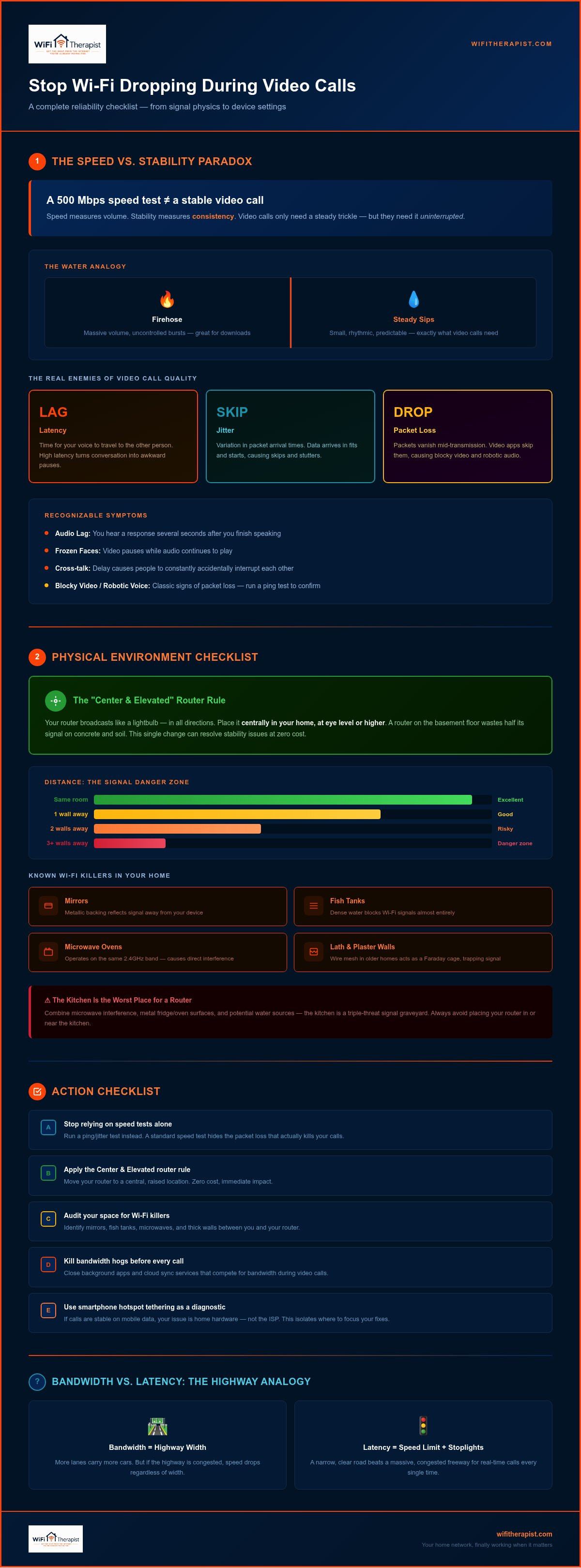
You run a speed test and the needle jumps to 500Mbps. You feel a sense of relief, assuming your connection is rock solid. Then, ten minutes into your client presentation, your screen freezes and your audio cuts out. This is the speed test trap. To stop wifi dropping during video calls, you must understand that high speed does not always mean high reliability. Think of your internet as a water system. While a massive firehose can move a lot of water quickly, a video call only needs a steady, rhythmic series of small sips. If those sips are interrupted, the whole system collapses.
The real enemies of a smooth Zoom or Teams call are latency and jitter. Latency is the time it takes for your voice to travel to the other person. Jitter is the variation in time between data packets arriving. When jitter is high, your computer receives information in fits and starts. This creates a confusing experience for your hardware, leading to those frustrating skips and stutters that make professional communication so difficult. It's not about how much data you can get; it's about how predictably that data arrives. By focusing on stability instead of just raw speed, you can start building a connection that actually works when you need it most.
Understanding Bandwidth vs. Latency
Think of bandwidth as the width of a highway. A wide highway carries many cars, but latency is the speed limit and the stoplights. A narrow, clear road is always better for a call than a massive, congested freeway. High latency turns a natural conversation into a series of awkward interruptions. You can usually spot it through these specific symptoms:
- Audio Lag: You hear someone's response several seconds after you finish speaking.
- Frozen Faces: The video pauses for a moment while the audio continues to play.
- Cross-talk: Because of the delay, people constantly accidentally interrupt each other.
The Impact of Packet Loss on Video
Every second of your call is chopped into thousands of tiny data packets. If your Wi-Fi is unstable, some packets vanish. This is packet loss. Because video apps prioritize real-time motion, they skip missing packets rather than waiting for them. This causes blocky video or robotic voices. You can check this by running a ping test in your terminal, which reveals the hidden drops a standard speed test often hides. It provides a much more honest look at your connection's health than a simple download speed result.
Physical Environment Checklist: Clearing the Path for Wi-Fi
Your home's layout is often the biggest hurdle when you want to stop wifi dropping during video calls. While we often focus on software settings, the physical path between your router and your laptop determines the strength of those data sips we discussed earlier. If your signal has to fight through dense materials or reflective surfaces, it arrives at your computer weakened and fragmented. This leads to the stuttering video that disrupts your professional flow.
A simple starting point for any home office is the Center and Elevated rule. Your router sends signals out in all directions, much like a lightbulb. If it sits on the floor or in a far corner of the basement, half of its potential is wasted on the foundation or the yard. Place it in a central location, ideally at eye level or higher, to give the signal a clear path across the rooms you use most. This one change can often resolve stability issues without costing a dime.
Distance matters just as much as placement. If your home office is more than two walls away from the router, you are likely in a danger zone for signal drops. Each wall acts as a filter that strips away data. This becomes even more critical in older homes where construction materials act like a shield. If you find that moving just one room closer to the source solves the issue, you've identified a physical bottleneck rather than a hardware failure.
Barriers You Can and Cannot See
Certain household items are notorious Wi-Fi Killers because they either absorb or reflect radio waves. Mirrors are particularly troublesome because the thin metallic backing reflects the signal away from your device. Large appliances and fish tanks are also problematic; water is incredibly dense and blocks signals almost entirely. This is why the kitchen is often the worst place for a router. Between the microwave interference and the metal surfaces of the fridge and oven, your signal faces a constant uphill battle. For those living in historic properties, overcoming lath and plaster barriers is essential, as the wire mesh used in these walls creates a literal cage that traps your connection.
Optimizing Your Office Layout
The ideal goal for any video call setup is a clear line of sight. If you can physically see your router from your desk, your connection will be significantly more stable. Many people hide their technology inside cabinets or behind furniture to keep the room tidy, but this is like putting a lamp inside a cardboard box and expecting the room to stay bright. Even simple furniture shifts, like moving a heavy bookshelf away from the direct path of the signal, can improve reception by a noticeable margin. If you've tried rearranging your space and still feel stuck, a professional technology consultation can help you find the perfect balance between aesthetics and performance without the need for expensive rewiring.
Device and Software Checklist: Optimizing Your Computer
Once you have cleared the physical path for your signal, it is time to look at the device in your hands. Sometimes the hardware isn't the problem; it's the way your computer manages the data it receives. If your goal is to stop wifi dropping during video calls, checking your background processes is a vital next step. Your computer is constantly multitasking, and often, it prioritizes the wrong things at the worst possible moments.
Your network adapter acts as the translator between your digital life and the router. If that adapter is overwhelmed or running outdated software, your connection will feel sluggish regardless of how fast your internet plan is. We want to ensure your computer is fully focused on your meeting rather than fighting for scraps of bandwidth.
Managing Background Data Usage
Many common applications are designed to be "helpful" by syncing data in the background. Services like Dropbox, OneDrive, and iCloud are notorious for this. They often wait for a connection to become active and then immediately start uploading large files. Because video calls rely heavily on your upload capacity, these background "hogs" can saturate your connection and cause your video to freeze. iCloud doesn't care if you're in the middle of a board meeting; it only knows it has a new batch of photos to move.
- Pause Cloud Syncing: Manually disable backups for the duration of your call.
- Check for Hidden Updates: Windows Update and Steam often download massive files without asking.
- Low Bandwidth Mode: Most apps like Zoom or Teams have a setting to reduce data usage. This is a great stabilizing tool when your connection feels fragile.
Frequency Management
Most modern routers offer two different frequencies: 2.4GHz and 5GHz. Choosing the right one is one of the most effective ways to stop wifi dropping during video calls without spending a penny. Think of 5GHz as a fast, clean express lane. It handles data much faster but has a shorter range. The 2.4GHz band is like a crowded local road; it travels further through walls but is often congested by other devices, including your neighbor's Wi-Fi and even your own Bluetooth headphones.
If you are in the same room as your router, always choose the 5GHz band. It is less prone to interference and provides the stability needed for high-definition video. However, if you are working several rooms away, the 2.4GHz band might actually be more reliable because it penetrates walls more effectively. If your laptop keeps jumping between the two, it can cause a temporary drop. You can usually "forget" the 2.4GHz network in your settings to force your device to stay on the more stable 5GHz path. For those who need absolute certainty, learning about the benefits of being hardwired vs WiFi for home office use can provide the ultimate solution to these frequency frustrations.
Advanced Troubleshooting: The "Technical Mentor" Approach
If you have cleared the physical path and optimized your laptop settings but still face interruptions, it is time to look deeper into your network's infrastructure. Many people assume they need a brand new internet plan or a $400 router to stop wifi dropping during video calls. However, the solution often lies in identifying exactly which piece of equipment is failing you. By taking a methodical approach, you can stop the guesswork and start making informed decisions about your home setup.
One common culprit is the hardware provided by your internet company. Most "free" routers are built with basic components that struggle to manage multiple high-priority data streams at once. This often leads to bufferbloat, where the router becomes overwhelmed and starts delaying your video packets to handle other traffic. Understanding these hidden bottlenecks is the key to moving from a fragile connection to a resilient one.
The Diagnostic Tethering Test
This is the most powerful tool in your diagnostic arsenal. When your video call starts to stutter, immediately switch your laptop's Wi-Fi connection to your smartphone's mobile hotspot. This simple act tells you everything you need to know about the root cause of your problem. It acts as a control for your experiment. If the call stabilizes on the hotspot, you have confirmed that your laptop and the video app are working perfectly; the issue resides within your home Wi-Fi or your Internet Service Provider (ISP).
- Hotspot works: The problem is your router or the signal inside your home.
- Hotspot also fails: The problem is likely your laptop's hardware or the video service itself.
This test saves you hours of frustrating technical support calls because it provides objective proof. You no longer have to wonder if the ISP is at fault; you have the data to show them exactly where the connection breaks down. It is a stabilizing first step that brings clarity to a confusing situation.
Handling Network Congestion
You can often resolve internal congestion by accessing your router's settings and enabling Quality of Service (QoS). This allows you to tell the router that your video calls are more important than a background file download or a gaming console in the next room. It creates a "fast lane" for your professional life. In crowded apartment buildings, "Auto" channel selection can also be a trap. Your router might be fighting with twenty others for the same digital space. Manually selecting a less crowded channel can provide a stabilizing effect that "Auto" mode simply cannot match.
If these advanced steps feel overwhelming or you are tired of guessing, a remote technology consultation can help you navigate these settings and find a permanent fix. For those who need absolute reliability, using "Bridge Mode" with a high-quality third-party router allows you to bypass the limitations of your ISP's hardware. This setup gives you full control over your network's performance while keeping your existing internet service intact.
When DIY Isn’t Enough: Seeking a Technical Mentor
You have moved your router to a central spot. You have cleared the physical barriers and optimized your laptop's settings. If you still struggle to stop wifi dropping during video calls, you have likely reached the limit of what a general checklist can solve. This is a common point of frustration, but it doesn't mean your situation is hopeless. It simply means your home environment has unique technical nuances that require a more targeted, expert perspective.
There is a significant difference between calling your ISP and speaking with an independent technical mentor. ISP support agents are often bound by rigid scripts and may push you toward more expensive data plans that won't actually fix a stability problem. An independent guide has no stake in which hardware you buy or which provider you use. This objectivity is vital. A simple $50 consultation can often save you from spending $500 on a high-end mesh system that might not address the actual bottleneck in your home office.
By focusing on your specific needs, a mentor helps you extract the most value from the tools you already have. If you want a deeper look at long-term stability, you can explore our guide on how to improve home office WiFi reliability for more advanced strategies. The goal is to move you away from digital anxiety and toward a state of quiet confidence in your connection.
The WiFi Therapist Process
When you book a session, the experience is designed to be calm and methodical. It begins with a remote discovery call where we listen to your specific frustrations. We don't use overwhelming jargon or talk down to you. Instead, we perform a virtual walkthrough of your space and your settings. We look for the hidden "path" issues that automated tests miss. This process isn't about hardware specifications; it is about human outcomes. We want to ensure you can lead your meetings without the fear of a sudden disconnect.
Next Steps for a Reliable Home Office
Preparing your home for long-term remote work success is about more than just buying the right gadgets. It is about creating a resilient system that adapts to your daily life. You deserve to move from a state of constant troubleshooting to a functional, predictable workspace. If you are ready to stop wifi dropping during video calls and want to start solving the problem once and for all, the path forward is clear and supportive. You can book your $50 Technical Discovery Call today to get started on a permanent resolution.
Regaining Confidence in Your Connection
You now have a structured roadmap to identify the bottlenecks in your home office. By shifting your focus from raw download speeds to data stability and physical placement, you can finally stop wifi dropping during video calls. Whether it is moving your router away from a mirror or pausing a background cloud sync, these small adjustments create a more resilient environment for your professional life.
Technology often presents unique challenges that a standard checklist cannot anticipate. If you have worked through these steps and still face interruptions, you don't have to navigate the complexity alone. Our process provides independent technical guidance with plain-English explanations, focusing entirely on your specific home environment. There is no pressure to buy expensive new hardware; we simply want to help you get the most out of what you already own. Stop the frustration and book a $50 WiFi Consultation to find a permanent solution. You deserve a connection that supports your work rather than getting in its way.
Frequently Asked Questions
Why does my Wi-Fi only drop when I start a video call?
Video calls are unique because they require a constant, real-time stream of data in both directions. Unlike streaming a movie, which can "buffer" or pre-load data, a video call has no safety net. If your connection has a split second of instability or a "jitter" spike, the call snaps. This is why your internet might feel fine for browsing but fails the moment you need to stop wifi dropping during video calls.
Will a new, expensive router stop my Zoom calls from lagging?
Not always. While a high-end router has better range, it cannot fix issues caused by your home's construction materials or a poor signal from your internet provider. Buying a $400 router is often an expensive gamble. It's usually more effective to optimize your current router's placement and settings before investing in new hardware that might not solve the root cause.
Does my internet speed affect video call reliability?
Speed matters much less than you might think. Most high-definition video calls only require about 3 to 5 Mbps of upload and download capacity. Reliability is actually about stability and low latency. If you have a 500 Mbps plan but your connection is unstable, your calls will still drop. Focus on the quality of your signal rather than the size of your data "firehose."
How can I tell if my ISP is the reason my calls are dropping?
The easiest way to check is the "Smartphone Tethering Test." Switch your laptop to your phone's mobile hotspot during a call. If the connection becomes stable immediately, the problem is likely your home Wi-Fi or your internet provider. This simple diagnostic step can save you hours of circular conversations with technical support agents who might otherwise blame your devices.
Is a mesh Wi-Fi system better for video conferencing?
A mesh system can help with coverage, but it can sometimes make video calls worse. Each "node" in a mesh system adds a tiny delay as data hops from one point to another. This can increase latency and jitter. If you want to stop wifi dropping during video calls, a single strong signal or a direct cable connection is almost always more reliable than a wireless mesh setup.
What is the best Wi-Fi frequency for video calls: 2.4GHz or 5GHz?
The 5GHz frequency is usually the best choice because it is faster and less prone to interference from other household electronics. However, it has a shorter range and struggles to pass through thick walls. If you are in the same room as your router, use 5GHz. If you are working several rooms away, the 2.4GHz band might actually be more stable despite its lower top speed.
Can other devices in my house cause my video call to drop?
Yes, other devices can create significant "noise" on your network. A microwave or a set of Bluetooth headphones can interfere with 2.4GHz signals. More commonly, a gaming console downloading an update or a family member's phone backing up photos to the cloud can saturate your upload capacity. This leaves very little room for your video call data to get through.
How do I test my connection for packet loss?
You can test for packet loss by running a "ping test" in your computer's terminal or command prompt. This test sends a series of tiny data packets to a server and tracks how many of them actually make it back. If you see "Request Timed Out" messages, you have found the hidden drops that are ruining your calls. This provides a much more honest look at your connection's health than a standard speed test.


