

You’ve prepared for weeks for this high-stakes presentation, but three minutes in, your screen freezes and your voice turns into a robotic stutter. It’s a deeply frustrating moment that leaves you feeling professionally exposed while you stare at a router that promised lightning-fast speeds. When weighing the benefits of hardwired vs wifi for home office setups, it’s easy to feel overwhelmed by technical jargon and conflicting advice. We understand that your workspace should be a place of focus and productivity, not a constant source of technical anxiety.
It’s exhausting to invest in expensive gear only to find your video still lags at the worst possible time. You aren't alone in your frustration, and the good news is that these issues are often solvable with a few intentional adjustments. This guide will help you understand why your "fast" internet might still be failing you and how to choose the right connection strategy to eliminate lag for good. We will walk through the practical differences between Ethernet and WiFi, explain how to manage stability without a degree in computer science, and ensure you have reliable, HD video calls without spending a fortune on unnecessary hardware.
Key Takeaways
- Understand why standard speed tests are often misleading and how to identify the hidden stability issues that cause video freezing.
- Learn how to evaluate hardwired vs wifi for home office connections based on your specific floor plan and physical environment.
- Discover why a modest physical connection can provide more stability for your professional meetings than the most expensive wireless hardware.
- Identify the software features and background processes that are adding unnecessary strain to your computer during high-stakes calls.
- Develop a diagnostic mindset to solve connectivity problems at the source rather than falling into a cycle of endless hardware upgrades.
The Stability Paradox: Why "Fast" WiFi Still Lags
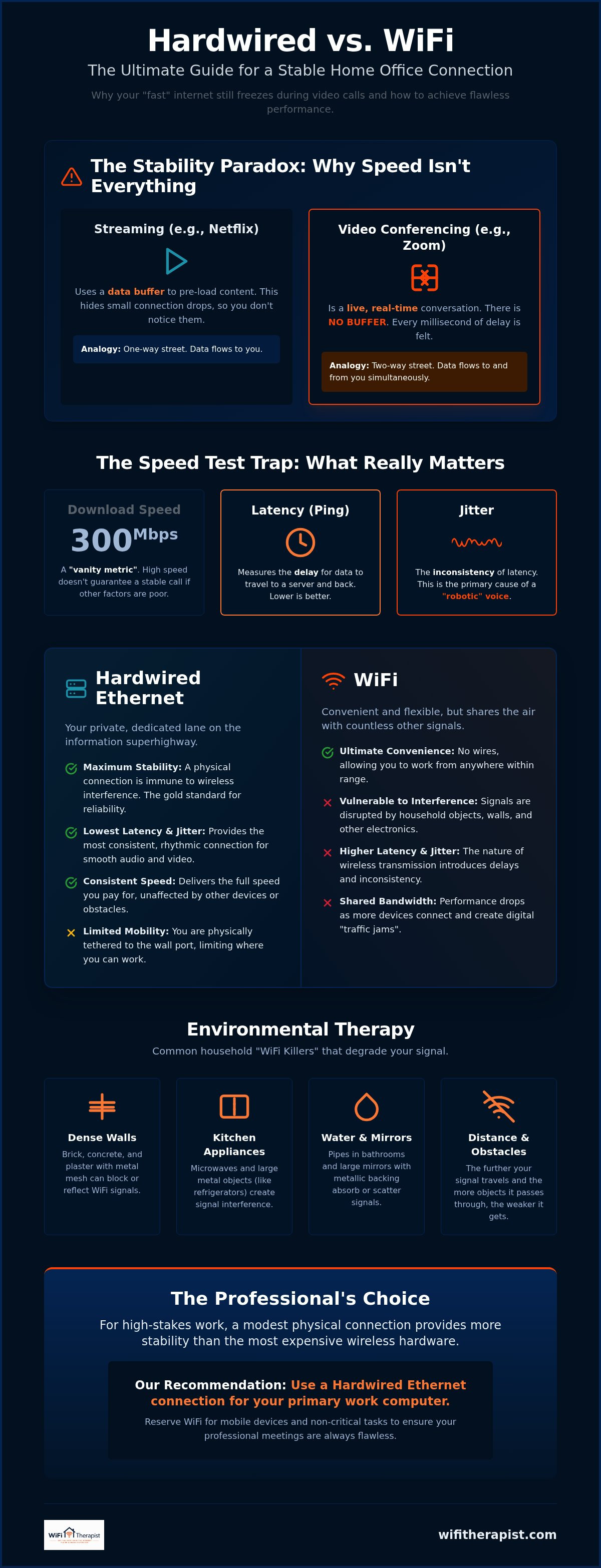
It’s a common source of frustration. You pay your internet service provider for a top-tier package and run a speed test that shows hundreds of megabits per second. Yet, the moment you join a high-stakes video call, your screen freezes and your audio cuts out. This happens because "speed" is a misleading term in the tech world. When we weigh the pros and cons of hardwired vs wifi for home office setups, we have to look past the big numbers on the box and focus on how your connection actually behaves in real-time.
Video conferencing is fundamentally different from one-way activities like watching Netflix or downloading a large file. When you stream a movie, your computer downloads a "buffer" of data in advance. If your connection wobbles for a second, you never notice because the buffer keeps the movie playing. Zoom is a live, two-way conversation. There is no buffer. Every millisecond of delay is felt immediately by everyone on the call. It requires a connection that doesn't just move a lot of data, but moves it with perfect, rhythmic timing.
The Speed Test Trap
Most people click "Go" on a speed test and only look at the download number. In the industry, we call this a vanity metric. To understand why your calls fail, you need to look at "Ping" and "Unloaded Latency." Latency is the heartbeat of your connection stability. It measures the time, in milliseconds, that it takes for a tiny packet of data to travel from your computer to the server and back. Your ISP’s advertised speed doesn't guarantee a smooth video call if that heartbeat is irregular.
You should also check for "Jitter." If latency is the delay, jitter is the inconsistency of that delay. This is the erratic timing that causes your voice to sound like a robot. Even a very "fast" WiFi signal can suffer from high jitter because wireless waves are easily knocked off course by physical obstacles or other electronic signals in your home.
Bandwidth vs. Stability
Your home network is a shared resource, and video calls require a consistent "two-way street" of data flow. While you are trying to present a slide deck, your computer is simultaneously sending your HD video feed out (upload) and receiving the video feeds of everyone else (download). If a gaming console in the next room starts a large update or a 4K television begins streaming in the lounge, it creates digital traffic jams.
This congestion is why choosing hardwired vs wifi for home office use is so critical for professionals. A physical cable provides a dedicated, shielded lane for your data that isn't interrupted by your neighbor's router or your own microwave. You can improve home office wifi reliability by balancing your network load, but a wire removes the guesswork entirely. It ensures that your "heartbeat" stays steady, even when the rest of the house is busy online.
Environmental Therapy: Why Your Home is Fighting Your WiFi
Wireless signals are essentially invisible radio waves, and just like light, they can be blocked, reflected, or absorbed by the world around them. When you are deciding between hardwired vs wifi for home office use, you aren't just comparing two technologies; you are evaluating the physical layout of your living space. Many professionals feel a sense of personal failure when their internet lags, but the culprit is often the very walls of their home. It is a physical problem, not a personal one.
Specific materials act as "signal killers" that effectively swallow your connection before it reaches your laptop. Older homes with lath and plaster walls are particularly challenging because they often contain a hidden metal mesh that acts like a shield. Brick, concrete, and even large mirrors with metallic backing can bounce signals away from your desk. This is why we recommend the "Line of Sight" rule. If you can't physically see your router from your office chair, your signal is likely working twice as hard to reach you. Simply keeping your office door open during a high-stakes call can sometimes reduce packet loss enough to stop your video from stuttering.
Your kitchen and bathroom are also hidden enemies of a stable connection. Kitchens are filled with metal appliances and microwaves that operate on the same frequencies as WiFi, while the water in your bathroom pipes and the dense tiles on the walls create a literal dead zone. If your signal has to pass through these rooms to get to your office, your Zoom calls will suffer regardless of your internet package. If you find your floor plan is creating too many obstacles, it might be time to book a professional consultation to map out a more effective strategy for your specific environment.
Router Placement and Signal Path
The best place for your router is high up on a shelf in a central location. Hiding your router inside a wooden cabinet or behind a television is the most common cause of avoidable lag we see in modern home offices. Think of the signal path as a beam of light. You want the path of least resistance between your laptop and the router. Elevating the device helps the signal travel over furniture rather than through it, which significantly improves the reliability of your wireless connection.
Frequency Congestion: 2.4GHz vs. 5GHz
Modern routers offer two main frequencies, and choosing the right one is vital for video stability. The 2.4GHz band has a long range but is incredibly crowded and slow. It's often overwhelmed by baby monitors, Bluetooth devices, and your neighbor's network. The 5GHz band is much faster and less prone to this interference. Even if you see fewer "signal bars" on your 5GHz connection, it's almost always the better choice for Zoom calls because it handles the high-speed, two-way data requirements of video much more efficiently.
Hardwired Ethernet vs. WiFi: Choosing Your Foundation
When you stand in the electronics aisle, it's tempting to believe that a more expensive router will solve all your connectivity woes. High-end mesh systems with sleek designs promise to blanket your home in data, but there's a fundamental "Wired First" rule we often share with our clients. A simple $15 Ethernet cable frequently provides more stability than a $400 router. This isn't because the router is bad; it's because a physical connection removes the environmental variables that make wireless signals unpredictable.
Choosing between hardwired vs wifi for home office setups involves balancing pure reliability against daily convenience. A physical wire acts as a shielded tunnel for your data, protecting it from the interference and signal drops discussed earlier. Beyond stability, hardwired connections offer a subtle security advantage. Radio waves can be intercepted from outside your home, but a physical cable requires direct access to your hardware. While WiFi is wonderful for casual browsing, a wire remains the gold standard for professional work.
For many professionals, a high-quality Mesh system is "good enough" if the nodes are placed strategically. These systems use multiple units to pass the signal around obstacles, which is a significant improvement over a single router in a distant closet. However, even the best Mesh system still relies on wireless "backhaul" to talk between nodes. If you want a connection that never flinches during a keynote, the physical foundation of a cable is still the superior choice.
When to Go Hardwired
If your work involves high-stakes presentations, large file transfers, or frequent video conferencing, a hardwired connection is your best ally. It completely eliminates the jitter caused by household interference, ensuring your voice stays clear and your video remains sharp. If you can't easily run a long cable through your home, you don't necessarily need to start a renovation project. Powerline adapters use your home's existing electrical wiring to carry data, while MoCA adapters use your cable TV outlets. These "no-drill" alternatives provide much of the stability of a direct Ethernet line without the mess of a physical cable pull.
The Case for WiFi Optimization
There are times when WiFi is the more practical choice, especially if you move between rooms or prefer a minimalist desk setup without extra cables. Modern laptops often lack a built-in Ethernet port, making wireless the default path. If you choose this route, it's vital to verify your signal strength specifically for video conferencing rather than just web speed. Look for a "Good" or "Excellent" rating in your meeting software's statistics panel. Before you commit to expensive wiring or new hardware, you might want to hire a home network consultant to audit your current setup. An independent expert can help you decide if your current WiFi can be optimized or if a physical foundation is truly necessary for your peace of mind.
Beyond the Router: Optimizing Your Computer for Video Calls
Sometimes, the source of your video frustration isn't the signal coming through the wall, but the machine sitting on your desk. Even after you’ve settled the debate of hardwired vs wifi for home office use, your computer can still struggle to keep up with the intense demands of real-time video processing. Zoom and similar platforms aren't just sending data; they are constantly encrypting your feed, blurring your background, and filtering out your neighbor's lawnmower. If your computer fan sounds like a jet engine taking off, it’s a clear warning that your hardware is gasping for air and your video is about to stutter.
Whether you’ve chosen hardwired vs wifi for home office connectivity, your computer remains the final gatekeeper of call quality. Background applications like cloud syncing tools, heavy web browsers, and system updates can "steal" both your bandwidth and your CPU cycles. These silent resource-drainers often create the illusion of a bad internet connection when the network itself is actually performing perfectly. Identifying these internal bottlenecks is a vital step in reclaiming your professional confidence during meetings.
The High-Performance Zoom Checklist
Small changes in your software settings can significantly lower the burden on your system. We suggest disabling "HD Video" and "Touch Up My Appearance" during high-stakes meetings. While these features offer a polished look, they require extra processing power that can lead to lag if your system is already stressed. If your CPU usage is consistently high, try turning off "Silence Background Noise" or closing the twenty open Chrome tabs you have running in the background. Each open tab acts like a tiny leak in your system's performance, slowly draining the resources your video call needs to stay smooth.
Hardware Breathability and RAM
Your computer needs room to breathe, both physically and digitally. During your next call, open Task Manager on Windows or Activity Monitor on a Mac to see how much of your CPU is being consumed. Older laptops often struggle with modern video encryption standards, leading to frames that drop or freeze. RAM also plays a vital role by acting as a short-term memory buffer for your video stream. If your desk is cluttered with background applications like Spotify or Slack, there isn't enough room left for Zoom to work efficiently. If you're feeling overwhelmed by these technical hurdles, you can book a consultation to help identify if your hardware or your network is the true culprit.
Escaping the Hardware Treadmill: Expert Guidance
It’s easy to get trapped in a cycle of buying new gadgets every time a Zoom call drops. You might feel that if you just spend a little more on a "pro" router or a newer mesh system, your technical woes will finally vanish. This is what we call the hardware treadmill. It’s an expensive, exhausting process that often fails because it treats the symptoms rather than the root cause. True peace of mind comes from understanding your network, not just throwing more plastic and silicon at the problem.
One of the first steps to reclaiming your productivity is identifying whether you have a "lemon" ISP connection or an internal home network issue. If your speed tests are erratic even when you are standing next to the router, your provider might be at fault. However, if your internet works perfectly for Netflix but fails the moment you join a meeting, the bottleneck is likely inside your home. When navigating the choice of hardwired vs wifi for home office setups, having a clear diagnostic starting point prevents you from wasting money on solutions that don't fit your specific environment.
The Independent Advantage
Your internet service provider is responsible for bringing the signal to your front door, but they won't (and usually can't) fix the lag happening in your upstairs office. Similarly, a hardware salesperson is incentivized to sell you the most expensive box on the shelf, regardless of whether it solves your jitter. A WiFi Therapist acts as a neutral third party and a technical mentor. We focus on practical, low-cost improvements and extracting maximum value from the gear you already own. A 30-minute discovery call provides immediate, actionable answers that can save you hundreds of dollars in unnecessary upgrades.
Next Steps for a Lag-Free Office
Creating a "Technology Readiness" plan is the best way to ensure long-term reliability for your remote career. This involves mapping out your signal paths, identifying physical obstacles in your home, and deciding once and for all on the best hardwired vs wifi for home office strategy for your floor plan. Professional consulting has become an essential service for remote professionals who cannot afford to have their technology fail during a high-stakes presentation. You don't have to be a tech expert to have a perfect connection; you just need a reliable guide to show you the way. Book your $50 Technical Consultation today and let’s get your home office running with the stability you deserve.
Reclaiming Your Professional Presence
You've discovered that a smooth Zoom call depends on more than just a high speed test number. By understanding the role of latency and identifying the physical signal killers in your home, you've already taken the first step toward a more reliable workday. The choice between hardwired vs wifi for home office use doesn't have to be a source of stress or a reason for a massive hardware bill. With a few intentional changes to your setup and your software settings, you can eliminate the embarrassment of frozen screens and robotic audio for good.
If you're ready to stop the guesswork and start focusing on your work, we're here to help. Stop the lag and book a $50 technical consultation with a WiFi Therapist. We provide independent advice with no hardware to sell and plain-English solutions for your most complex connectivity problems. This expert guidance is designed specifically for remote professionals who need their home office to work as hard as they do. You've got this, and we're ready to help you cross the finish line to a stable, HD workspace.
Frequently Asked Questions
Why is my Zoom lagging when my speed test results are fast?
Your speed test measures the total volume of data your connection can handle, but Zoom relies on how quickly that data reacts. If your "ping" or "jitter" is high, your video will lag even if you have very high speeds. Think of it like a highway: you can have ten lanes, but if there's a pothole every mile, the traffic won't flow smoothly.
Does using a virtual background make Zoom lag more?
Virtual backgrounds and "Studio Effects" require significant processing power from your computer's CPU. When your hardware is busy drawing a fake office behind you, it has fewer resources left to process the incoming and outgoing video stream. If you're experiencing lag, try turning off these features to see if your call stability improves immediately.
Is an Ethernet cable always better than WiFi for video calls?
A physical Ethernet cable is almost always superior for video calls because it removes the environmental variables that make wireless signals unpredictable. While modern WiFi is fast, it's susceptible to interference from walls, appliances, and other electronics. When you're deciding between hardwired vs wifi for home office setups, the cable provides the steady, rhythmic connection that high-stakes professional meetings require.
Will a mesh WiFi system fix my Zoom call drops in a large house?
A mesh system can improve coverage in dead zones, but it isn't a magic fix for call drops. These systems rely on nodes talking to each other wirelessly, which can still introduce latency and jitter. If the nodes are placed too far apart, you might have full signal bars but still experience the same stuttering issues during your meetings.
How much upload speed do I actually need for a smooth Zoom call?
For a high-quality 1080p group video call, Zoom generally requires an upload speed of about 3.8 Mbps. While this number seems small, the challenge is maintaining that speed consistently without any interruption. Many home internet packages offer massive download speeds but very narrow upload lanes. If other devices in your home are using that same narrow lane, your video will be the first thing to freeze.
Can my VPN cause lag during Zoom meetings at home?
A VPN adds an extra layer of encryption and routes your data through a distant server, which naturally increases your latency. This extra "stop" on the digital journey can be enough to turn a smooth call into a frustrating experience. If your company allows it, try disconnecting your VPN before joining a high-stakes meeting to see if the lag disappears.
Why does my Zoom video freeze while the audio keeps working?
Audio packets are much smaller and easier to transmit than heavy video data. When your connection struggles, Zoom automatically prioritizes audio so you can still hear the conversation even if the video feed can't keep up. This is a common sign that your bandwidth is being squeezed or your computer is struggling to process the incoming video stream.
How do I check my ping or latency during a live Zoom call?
You can view your real-time performance by opening Zoom's "Settings" menu and selecting the "Statistics" tab during a meeting. This panel shows your current latency, jitter, and packet loss for both audio and video feeds. Monitoring these numbers can help you identify if your connection is struggling, helping you make an informed choice about your hardwired vs wifi for home office strategy.


