

You are three minutes into your most important presentation of the month when the dreaded "unstable connection" banner appears. Your video freezes, your audio clips, and you are left wondering why your high-speed internet is failing you at the worst possible moment. It's a deeply stressful experience that 26% of the modern workforce faces regularly. You might feel like the only solution is to spend hundreds on a new router, but reliability is often about how you manage your environment rather than the specs on a box.
We understand how exhausting it is to navigate conflicting hardware advice while just trying to do your job. The good news is that you can significantly improve home office wifi reliability without buying unnecessary gear. This guide offers a clear, step-by-step path to stabilize your video calls and regain confidence in your setup. We will explore how to optimize your current equipment, prioritize your work traffic, and eliminate the hidden interference that causes those mid-day drops.
Key Takeaways
- Understand why high download speeds don't stop video lag and how managing "jitter" and "packet loss" creates a smoother call experience.
- Learn how to identify physical barriers like concrete walls and appliance interference that silently sabotage your signal.
- Discover how simple changes to router placement and frequency settings can dramatically improve home office wifi reliability without adding new costs.
- Compare the rock-solid stability of Ethernet against the convenience of mesh systems to build a professional-grade infrastructure.
- See how an independent technical mentor helps you extract maximum value from your existing hardware to reduce daily work-from-home stress.
Speed vs. Reliability: Why Your 'Fast' Internet Still Drops Calls
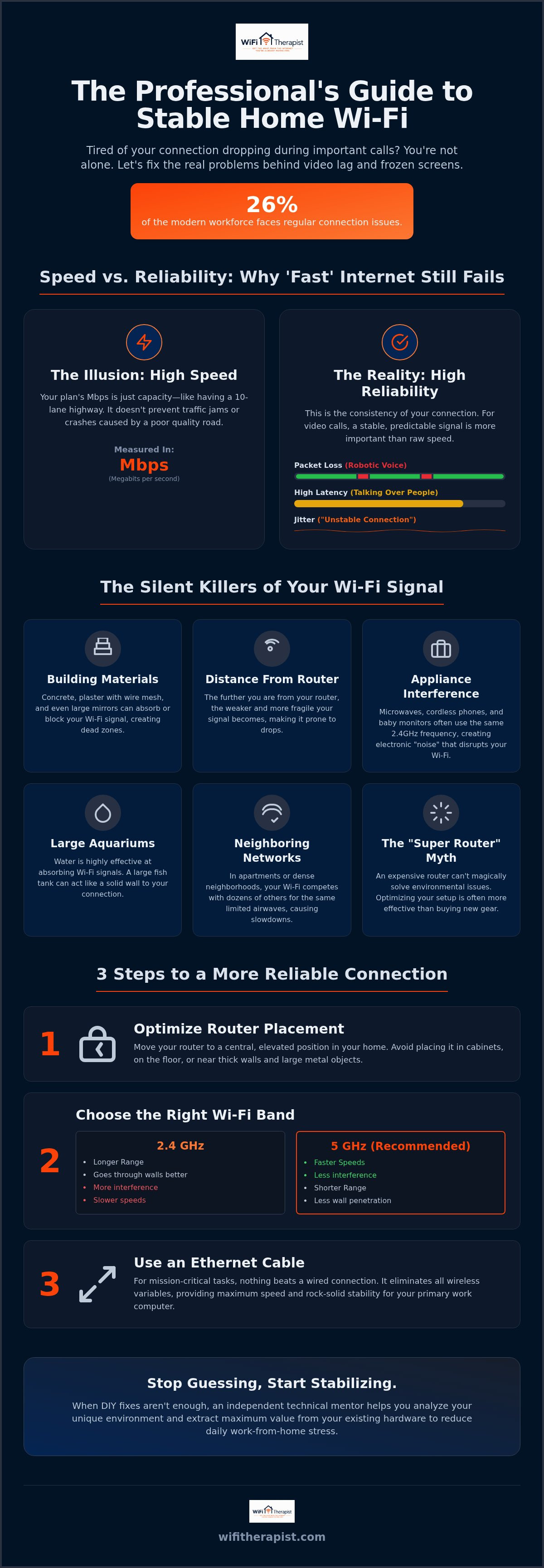
It's a common story. You upgraded to the most expensive plan your provider offers, yet your video calls still freeze during your most important client presentations. Most people assume that more Megabits per second (Mbps) naturally equals a better experience. However, speed is simply the capacity of your connection. To understand the foundations of Wi-Fi technology, we have to look at reliability as a separate metric. Speed is how much data you can move; reliability is how consistently that data arrives without interruption.
Think of your internet connection like a 10-lane highway. High speed means you have plenty of lanes for traffic to flow. However, if that highway is covered in deep potholes and sudden speed bumps, it doesn't matter how many lanes you have. Your data "cars" will still crash or slow down. To truly improve home office wifi reliability, we need to smooth out the road. In technical terms, we are looking to eliminate "packet loss," which is when bits of your data simply vanish in transit, leading to those robotic, stuttering voices on Zoom.
Understanding Latency and Jitter for Professionals
For remote teachers, presenters, or anyone in back-to-back meetings, "ping" or latency is often more important than download speed. Latency is the tiny delay between you speaking and your audience hearing you. When this delay is too high, you end up accidentally talking over people. Jitter is the variation in time between data packets arriving at their destination. While a Netflix movie can buffer ahead to hide these tiny gaps, a live conversation cannot. This inconsistency is what causes the "unstable connection" warnings that disrupt your workflow.
The Myth of the 'Super Router' Fix
It is tempting to believe a $400 router with half a dozen antennas will solve every connectivity headache. Unfortunately, hardware alone is rarely a silver bullet. Even the most powerful router cannot magically punch through thick lath and plaster walls or overcome poor room placement. Buying more gear without a plan usually leads to "technical clutter" and wasted money.
This is where independent advice differs from an ISP's marketing. A provider wants to sell you a faster plan or a proprietary extender. A technical mentor looks at your specific environment to see what is actually happening. Before you click "buy" on an expensive mesh system, a $50 discovery consultation can help you identify if your current setup just needs better management. We focus on stabilizing your environment and extracting every bit of value from the tools you already have on hand.
Identifying the Silent Killers of Office Connectivity
Your home office might be working against you before you even turn on your computer. While we often blame the service provider for a poor connection, the physical structure of your home and the objects within it often act as invisible shields. These environmental factors are the most common reasons for dropped calls. Understanding these silent killers is the first step to improve home office wifi reliability without spending a fortune on new equipment.
Distance is the most obvious hurdle. If your workspace is tucked away in a basement or a finished attic, you are likely at the very edge of your router's effective range. This makes your connection fragile. Even a small amount of interference can cause a total disconnect. In dense neighborhoods or apartment buildings, your neighbors' networks also create invisible "noise" that competes for the same limited airwaves, leading to a sluggish experience even if your signal looks strong.
Building Materials and Their WiFi Tax
Older homes often hide a secret enemy within their walls: lath and plaster. This construction style uses a dense grid of wire mesh to hold the plaster in place. This metal mesh acts like a cage, effectively trapping or blocking signals from traveling between rooms. If your router is in the living room and your office is behind two plaster walls, your connection will struggle to stay stable.
Modern homes have their own obstacles. Concrete walls in basements or industrial lofts absorb radio waves rather than letting them pass through. Even your decor choices can be a factor. Large mirrors have a metallic backing that reflects signals away from your devices. Similarly, large aquariums are essentially thick walls of water, which is highly efficient at absorbing Wi-Fi energy before it reaches your laptop.
Electronic Noise in the Home Office
Physical barriers are only half the battle. Your airwaves are likely crowded with electronic noise from everyday appliances. Many common household items, such as microwaves, baby monitors, and older cordless phones, operate on the 2.4GHz frequency. This is the same frequency many devices use to stay connected over longer distances.
When you heat up lunch or the baby monitor triggers, you might notice your video call starts to lag. This is the "crowded room" effect where too many devices are shouting over one another. Following FCC home network tips can help you identify which devices are competing for these overlapping frequencies. If you have tried rearranging your desk and still face disconnects, a professional home tech walkthrough can help you map out these invisible dead zones. Pinpointing these environmental hurdles allows us to fix the root cause of your frustration rather than just treating the symptoms.
Three Practical Steps to Stabilize Your Current WiFi
Once you understand the environmental hurdles in your way, you can start making changes that don't cost a dime. You don't always need new hardware to improve home office wifi reliability. Often, the solution is simply a more intentional setup that respects the way radio waves travel through your home. By taking a methodical approach to your configuration, you can eliminate the small frustrations that lead to dropped calls.
The Art of Router Placement
Many people hide their router under a desk or inside a cabinet to keep their office tidy. This is the worst possible place for your signal. Metal desk legs and tangled cables act as barriers that weaken your connection before it even leaves the corner. Think of your router like a light bulb. If you put it in a drawer, the room stays dark. To get the best results, place your router high on a shelf and as close to the center of your home as possible. This avoids the "corner trap," where half of your signal is wasted on the street or your neighbor's yard. You can perform a simple DIY test by running a speed test right next to the router and then again at your desk. If the speed at your desk is significantly lower, you have a placement problem that needs addressing.
Managing Your Network's Traffic
Your work laptop shouldn't have to fight for bandwidth with a smart fridge or a gaming console. Most modern routers allow you to create a guest network. Move all your non-essential smart home gadgets and family devices to this separate channel to clear the main lane for your professional needs. It's also vital to ensure your office devices are using the 5GHz or 6GHz bands. These frequencies are faster and less prone to the appliance interference we discussed earlier. While you are logged into your router's settings, check for any pending firmware updates. These small software patches often include performance fixes that stabilize your connection during long video calls. Finally, take a moment to look at your background apps. Cloud backup services or system updates can silently steal your bandwidth while you are trying to present. Pausing these during work hours is a simple way to maintain a rock-solid connection.
Wired vs. Wireless: Choosing Your Professional Infrastructure
Even with the best router placement, wireless signals remain vulnerable to the environment. If your role requires absolute certainty during high-stakes presentations, it is time to consider a physical connection. Wires are not as convenient as Wi-Fi, but they offer a level of stability that radio waves simply cannot match. Choosing the right infrastructure is a foundational step to improve home office wifi reliability for the long term.
Ethernet is the gold standard for a reason. It provides a dedicated path for your data, bypassing the "silent killers" like thick walls and electronic noise we discussed earlier. If running a long cable across your floor isn't an option, you might look into MoCA adapters. These devices use the existing coaxial cable outlets in your walls to create a high-speed wired network. Powerline adapters are another alternative, sending data through your home's electrical wiring, though their performance can vary based on the age of your home's copper.
When to Commit to a Hardwired Office
The primary benefit of a wired connection is peace of mind. When you are plugged in, you don't have to worry about signal drops or your neighbor's new router. For many modern laptops, this requires a simple USB-to-Ethernet adapter. You don't necessarily need a full renovation to get a wire into your office. Flat Ethernet cables can easily run under rugs or along baseboards, providing a professional-grade connection without the need for drilling holes in your walls.
Making Mesh WiFi Work for Work
If a wire is truly impossible, a mesh system is your next best option. However, not all mesh systems are created equal. For professional reliability, look for "tri-band" systems. These have a dedicated frequency just for the nodes to talk to each other, which keeps your work traffic moving quickly. Be careful not to add too many nodes. Over-saturating your home with mesh points can actually increase latency as your device struggles to decide which node to connect to.
As of August 2026, Wi-Fi 7 has become the recommended standard for these systems, offering significant improvements in how they handle multiple devices at once. While Wi-Fi 6 and 6E are still common, upgrading to the latest standard can provide a more resilient foundation for a busy household. If you feel overwhelmed by the choice between different standards and hardware, you can book a consultation to get an independent assessment of your home's unique needs. We focus on finding the most cost-effective way to improve home office wifi reliability without pushing you toward expensive hardware you don't actually need.
How a Technical Mentor Solves Your Connectivity Stress
Technology failures in the home are rarely just technical issues. They are emotional ones. When your video freezes during a client call, your stress levels spike and your confidence wavers. You aren't just looking for a faster download speed; you are looking for the peace of mind that comes with a stable workspace. Your Internet Service Provider (ISP) is unlikely to provide this. Their responsibility ends at the point where the signal enters your house. They don't have the incentive to help you manage the complex environment inside your walls.
A technical mentor acts as an independent ally. We don't sell hardware, and we aren't beholden to any specific provider. Our only goal is to help you improve home office wifi reliability by looking at your setup through a neutral, expert lens. This objective approach often reveals that you don't need to buy a "super router" to fix your problems. Instead, we focus on extracting every bit of value from the tools you already own. We move you from a state of frustration to a state of functional, quiet confidence.
The first step in this journey is a $50 remote discovery call. This low-barrier consultation allows us to hear your specific concerns and perform a high-level assessment of your environment. You receive professional guidance tailored to your lived experience, not a generic sales pitch. It's a methodical, calm process designed to lower your anxiety and provide a clear path forward.
The WiFi Therapist Approach: Empathy Meets Tech
We understand the frustration of being told to "just reboot your router" when you have a deadline looming. Our approach blends technical literacy with a supportive, non-judgmental attitude. We translate confusing "ISP speak" into plain English, ensuring you understand the "why" behind every recommendation. By focusing on your existing resources first, we protect you from the wasted expenditures so common in the tech world. We are here to act as a protective shield against future digital complications.
Preparing for the Future: Remodels and Move-ins
The most effective way to improve home office wifi reliability is to plan for it before problems arise. If you are currently planning a renovation, our Remodel and Renovation Planning services ensure your tech infrastructure is solid before the drywall is finished. We also provide Move-in Technology Readiness to help you hit the ground running in a new space. Whether you need to be "Football Ready" for the season or "Back-to-School Ready" for your children, we provide the foresight needed for a seamless transition. Understanding when to hire a home network consultant can save you from years of connectivity stress and unnecessary hardware costs.
Reclaiming Your Professional Confidence
You don't have to start every workday wondering if your connection will hold through your next presentation. We have seen how identifying physical barriers and making small adjustments to router placement can make a world of difference. To truly improve home office wifi reliability, you need a strategy that looks beyond the marketing hype of internet providers and focuses on the unique environment of your workspace. Often, the most effective solutions are about intentional management rather than expensive new gear.
You don't have to navigate these technical hurdles alone. As an independent advisor, I provide expert technical mentoring that focuses on your specific needs rather than hardware sales. National remote support is available to help you build a setup you can trust, ensuring your technology acts as a support rather than a source of stress. It is about moving from a state of frustration to one of quiet, functional confidence.
Book your $50 Technical Discovery Consultation today to receive independent, non-sales advice tailored specifically to your home. It's a simple, low-barrier step toward a more stable professional life. You deserve a workspace that works as hard as you do.
Frequently Asked Questions
Why does my WiFi drop only when I'm on a Zoom or Teams call?
Video calls require a continuous, real-time stream of data that cannot be buffered like a streaming movie. When your connection has even a tiny moment of "jitter" or packet loss, the call drops or freezes immediately. This happens because these applications are highly sensitive to the stability of your signal. To improve home office wifi reliability, you must focus on reducing these micro-interruptions rather than just increasing your raw download speed.
Will buying a newer, more expensive router fix my reliability issues?
A new router is rarely a magic fix for a poorly placed network. While a modern Wi-Fi 7 router offers better capacity, it still cannot easily penetrate thick concrete walls or metal interference. You might spend hundreds of dollars only to find the same dead zones in your office. It's much more effective to assess your home's physical layout and optimize your current settings before committing to a costly hardware upgrade.
How can I tell if the problem is my ISP or my home WiFi?
You can isolate the problem by plugging your laptop directly into your router using an Ethernet cable. If your connection becomes perfectly stable while wired, the issue lies within your home's wireless environment or router settings. However, if the drops continue while you are hardwired, the problem is likely with your Internet Service Provider's signal or the modem itself. This simple test saves you from troubleshooting the wrong end of the system.
Does a WiFi extender actually help with home office stability?
Extenders usually cause more harm than good in a professional setting. They repeat an existing, often weakened signal, which typically cuts your available bandwidth in half and increases latency. This creates the "unstable connection" warnings that ruin presentations. If you need to expand your range, a tri-band mesh system or a dedicated wired access point is a much more reliable choice for maintaining a steady work connection.
Is it worth it to hardwire my home office with Ethernet?
Ethernet remains the undisputed king of reliability for any professional workspace. By using a physical wire, you completely bypass the interference from your neighbor's network and household appliances like microwaves. It removes the guesswork from your connection and ensures your data has a clear, dedicated path. For high-stakes calls where a disconnect isn't an option, a simple $20 cable is the most cost-effective upgrade you can make to improve home office wifi reliability.
What is the best place to put my router in a two-story house?
The ideal location is a central, unobstructed spot on the ceiling of the first floor or high on a shelf. Since Wi-Fi signals tend to travel outward and slightly downward, placing the router in a central hallway helps the signal reach both floors more evenly. Avoid tucking the device into a corner or inside a TV cabinet. These positions trap the signal and force it to travel through more walls than necessary.
Can a $50 consultation really save me money on hardware?
Yes, because it identifies the root cause of your specific problem before you spend a dime on gear. Many people spend $400 on mesh systems they don't need, only to find the issue was a simple setting or a single piece of interference. A professional assessment helps you identify environmental fixes that don't require new purchases. We aim to help you get the most value from your current setup first.
What are the most common building materials that block WiFi signals?
Lath and plaster walls are the most common silent killers in older homes because they contain a hidden wire mesh that acts like a shield. In modern construction, concrete, brick, and stone are highly effective at absorbing radio waves. Don't overlook large mirrors or aquariums, either. The metallic backing on glass and the density of water can block or reflect signals away from your office, creating frustrating dead zones.


